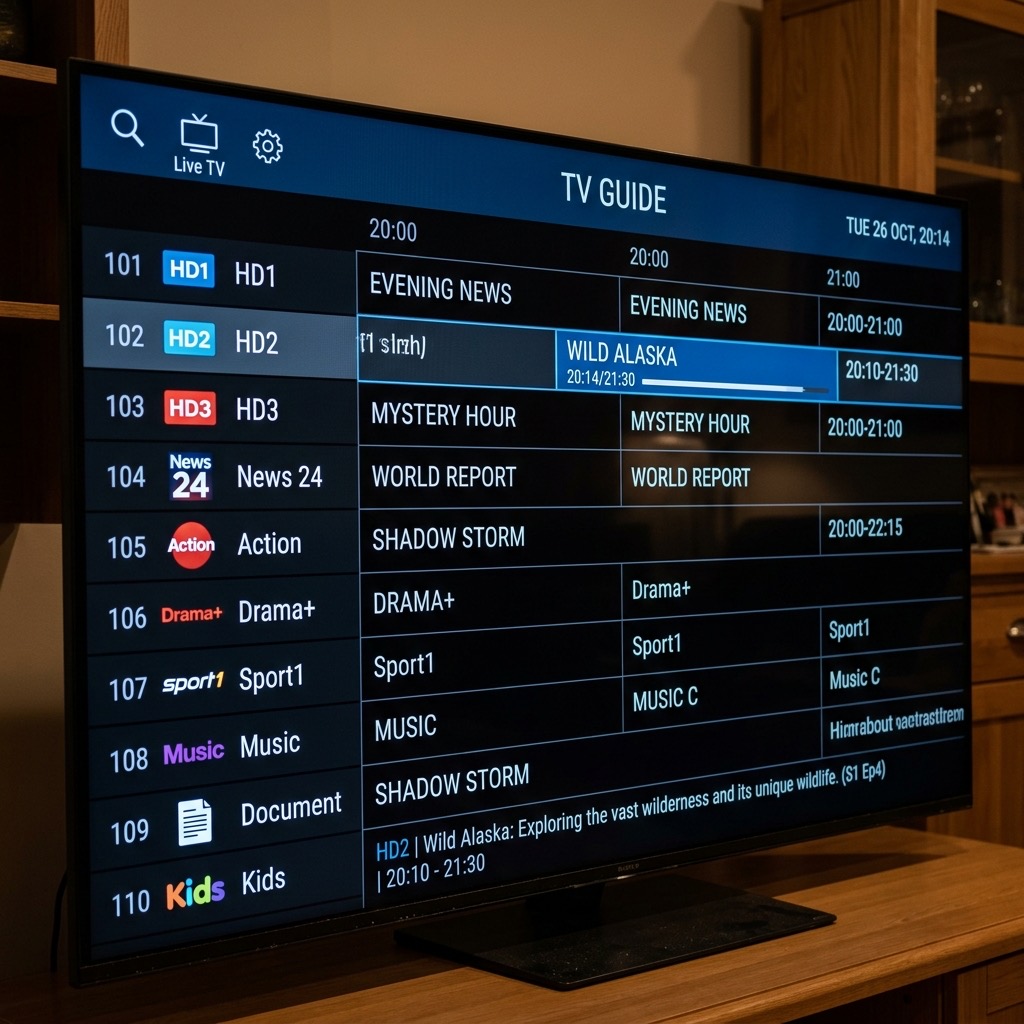
TiviMate Setup Guide: The Ultimate Player for Android TV & Firestick
. If you are looking for information on TiviMate setup guide, you are in the right place. Ask anyone in the cord-cutting community what the best streaming media player is, and you will receive a unanimous answer: TiviMate. Designed specifically for large screens and remote controls, TiviMate has completely revolutionized the industry. It transforms a messy M3U link into a beautiful, ultra-fast interface that rivals—and often exceeds—the user experience of traditional Sky Q or Virgin Media boxes.
However, TiviMate can be intimidating for beginners due to its massive array of advanced settings. This comprehensive guide will walk you through setting up the app perfectly on your Firestick or Android TV box.
Step 1: Installing TiviMate (TiviMate Setup Guide)
If you have an Android TV box (like the Nvidia Shield), TiviMate is available directly in the Google Play Store. If you are using an Amazon Firestick, you must “sideload” the app.
- Turn on your Firestick, go to Settings > My Fire TV > Developer Options, and turn on Apps from Unknown Sources.
- Install the Downloader app from the Amazon App Store.
- Open Downloader, click the URL bar, type tivimate.com (or use the official APK link
tivimate.com/tivimate.apk), and click Go. - Install the app and click Done.
Step 2: Upgrading to Premium (Crucial Step)
You can use the free version of TiviMate to watch channels, but it restricts almost every essential feature (like Catch-up TV, adding favorites, searching, and managing multiple playlists). To unlock the app’s true power, you must purchase TiviMate Premium (approximately £25 for a lifetime license covering 5 devices).
You must purchase the license using the “TiviMate Companion” app on an Android phone, or via the Google Play Store on your Android TV box. Once purchased, open TiviMate on your TV, go to Settings > Unlock Premium, and log in with your account credentials.
Step 3: Connecting Your Subscription (Xtream Codes)
While TiviMate supports M3U links, using Xtream Codes API is vastly superior as it organizes VODs and Live TV into perfect categories.
- Open TiviMate and click Add Playlist.
- Select Xtream Codes Login.
- Enter the Server URL (e.g., http://premium-server.com:8080). Do not forget the HTTP.
- Enter your Username and Password provided by British TV.
- Check the box that says “Include VOD”.
- Click Next. The app will process the login and download your content.
Step 4: Essential Settings to Change Immediately
To optimize TiviMate for the best possible experience, change the following settings immediately:
- Auto-Update EPG: Go to Settings > EPG. Turn on “Update on app start” and “Update interval: 24 Hours”. This ensures your TV guide is never blank.
- Hide Unused Groups: Go to Settings > Playlists > [Your Playlist] > Manage Groups. Hide every foreign country group you do not watch. This will make the app run lightning fast.
- Buffer Size: If you experience minor micro-stuttering on 4K sports channels, go to Settings > Playback > Buffer Size and change it from “None” to “Small” or “Normal”.
- Auto Frame Rate (AFR): Go to Settings > Playback > Auto Frame Rate. Turn this ON. This automatically adjusts your TV’s refresh rate to match the broadcast (e.g., 50Hz for UK football), eliminating judder during fast camera pans.
Understanding TiviMate setup guide is essential for the best experience.