How to Install IPTV UK: Complete Setup Guide | British Iptv
How to Install IPTV UK: Step-by-Step Guide
Getting your new subscription up and running is incredibly simple. This comprehensive guide will show you how to install IPTV UK services on virtually any internet-connected device. Whether you’re using a Samsung Smart TV, an Amazon Firestick, or your smartphone, follow the steps below to start streaming within minutes. If you are looking for information on British IPTV, you are in the right place.
1. How to Install IPTV on Amazon Firestick (British Iptv)
The Amazon Firestick is the most popular device for IPTV in the UK due to its low cost and high performance. We recommend using the IPTV Smarters Pro or TiviMate app.
- Go to the Firestick Home screen and click on the Search icon.
- Search for the app called Downloader and install it.
- Go to Settings > My Fire TV > Developer Options. Turn on “Apps from Unknown Sources”.
- Open Downloader, enter the URL for your preferred IPTV app (ask our support team for the direct download link), and hit Go.
- Once installed, open the app, enter the Xtream Codes login details provided after purchasing our packages, and click Login.

2. How to Install IPTV on Smart TV (Samsung & LG)
If you have a modern Samsung (Tizen) or LG (webOS) Smart TV, you don’t even need an external device. You can download an app directly from your TV’s app store.
- Open your TV’s App Store.
- Search for IBO Player, Smart IPTV, or DuplexPlay.
- Install your chosen app and open it. You will see a MAC address displayed on the screen.
- Send this MAC address to our support team via WhatsApp, or log into the app’s website to upload your M3U playlist URL manually.
- Restart the app on your TV, and your channels will load instantly.
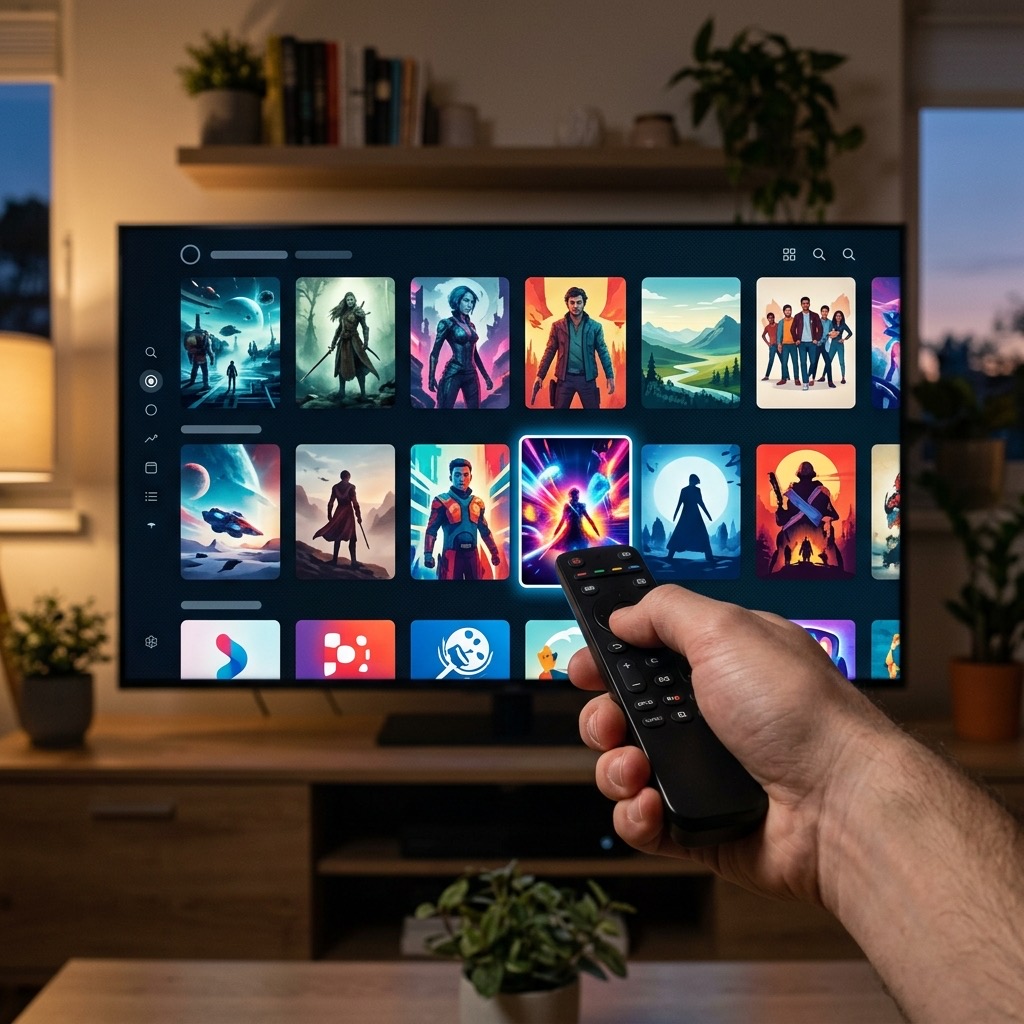
3. Setup on Android TV Box & Android Phones
Android devices offer the greatest flexibility when it comes to IPTV apps. You can use the Google Play Store to find dozens of excellent players.
- Open the Google Play Store.
- Search for TiviMate IPTV Player or IPTV Smarters Pro.
- Install the app and open it.
- Select “Login with Xtream Codes API” or “Add Playlist”.
- Enter the Username, Password, and Server URL we provided you.
4. Setup on PC or Mac (Using VLC Player)
If you want to watch on your computer, VLC Media Player is the best free option available.
- Download and install VLC from videolan.org.
- Open VLC. Click on Media (or File on Mac) > Open Network Stream.
- Paste the full M3U URL that we sent you into the network URL box.
- Click Play. To view the channel list, click View > Playlist.
Still Need Help?
If you are struggling with the installation, don’t worry! That’s what our 24/7 support team is here for. Head over to our FAQs page for common troubleshooting tips, or simply send us a message on WhatsApp. We can walk you through the process step-by-step for your specific device.
Understanding British IPTV is essential for the best experience. Understanding British IPTV is essential for the best experience. Understanding British IPTV is essential for the best experience.