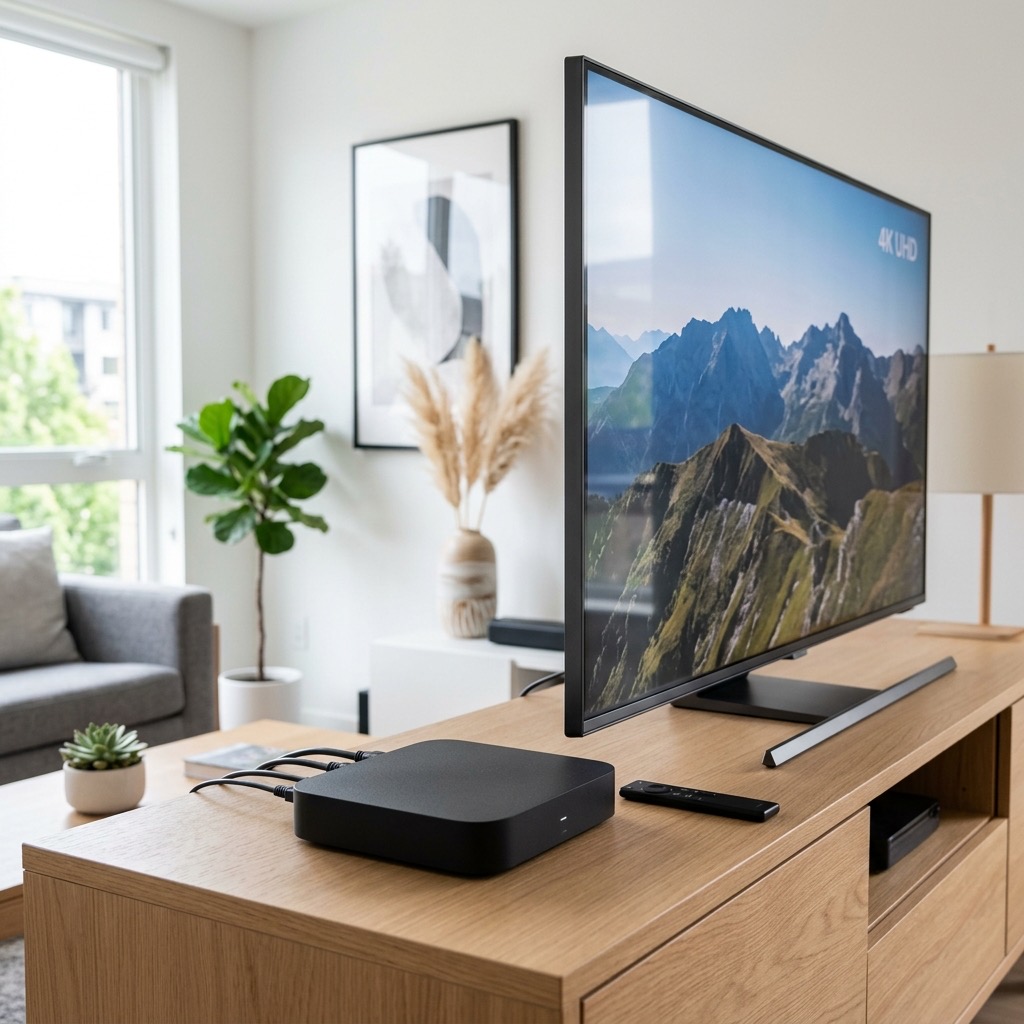
How to Setup IPTV on Apple TV Using iPlayTV
. If you are looking for information on IPTV on Apple TV, you are in the right place. The Apple TV 4K is arguably the most powerful, premium streaming device on the market. With its A15 Bionic chip and flawless tvOS interface, it easily outpaces the processing speed of most smart TVs and Amazon Firesticks. However, Apple’s strictly controlled “walled garden” ecosystem means you cannot sideload applications like TiviMate.
If you want to watch live television on your Apple TV, you are restricted to the official App Store. Thankfully, there is one app that stands head and shoulders above the rest, designed specifically for the Apple ecosystem: iPlayTV. This guide will show you exactly how to set it up.
Why iPlayTV is the Best Choice for Apple Users (IPTV on Apple TV)
While there are other options in the App Store (like GSE Smart IPTV and Smarters Player Lite), iPlayTV is the only application built from the ground up natively for tvOS. It isn’t a clunky port of a mobile app.
iPlayTV integrates beautifully with the Apple TV Siri Remote. The TV Guide (EPG) is stunningly clean, channel zapping is instantaneous, and it natively supports Apple’s advanced video decoders, meaning your 4K sports streams will look spectacular. The only downside? It costs $5.99 as a one-time purchase. However, for the premium experience it delivers, it is worth every single penny.
Step 1: Download the App
- Turn on your Apple TV and navigate to the official App Store.
- Use the search function (or Siri voice search on your remote) and type in iPlayTV.
- The icon is a purple square with a white play button. Purchase and download the application.
Step 2: Add Your Playlist (Xtream Codes API)
There are two ways to add your subscription to iPlayTV: via M3U URL or via Xtream Codes. We strongly recommend Xtream Codes API, as it separates Live TV and VOD perfectly and updates significantly faster.
- Open iPlayTV and click on Add Playlist.
- Select Xtream Server.
- You will be presented with a form. Fill it out exactly as follows:
- Playlist Name: Enter any name (e.g., “British TV”).
- Server URL: Enter the server address provided by your service (e.g., http://premium-server.com:8080). Do not forget the “http://”.
- Username: Enter your subscription username.
- Password: Enter your subscription password.
- Leave the EPG Update Interval at the default setting (usually 1 or 2 days).
- Click Save.
Step 3: Organize Your Interface
Once connected, iPlayTV will download all 50,000+ channels and 100,000 VODs. The beauty of iPlayTV lies in its customization. To make the app run flawlessly, you should hide the countries and categories you will never watch.
- From the main iPlayTV menu, go to Settings.
- Select Manage Playlists and click on your new playlist.
- Select Hide Groups.
- Go through the massive list of folders (e.g., Arabic, German, Spanish) and click to hide everything except the UK/US/Sports categories you actually want to watch. This will make your Apple TV load the app infinitely faster.
Troubleshooting Apple TV Issues
If a channel is buffering on your Apple TV, but works fine on your phone, the issue is almost always your local Wi-Fi. The Apple TV 4K has a gigabit ethernet port. You must run a direct ethernet cable from your broadband router to the back of the Apple TV for flawless live sports streaming.
Understanding IPTV on Apple TV is essential for the best experience.