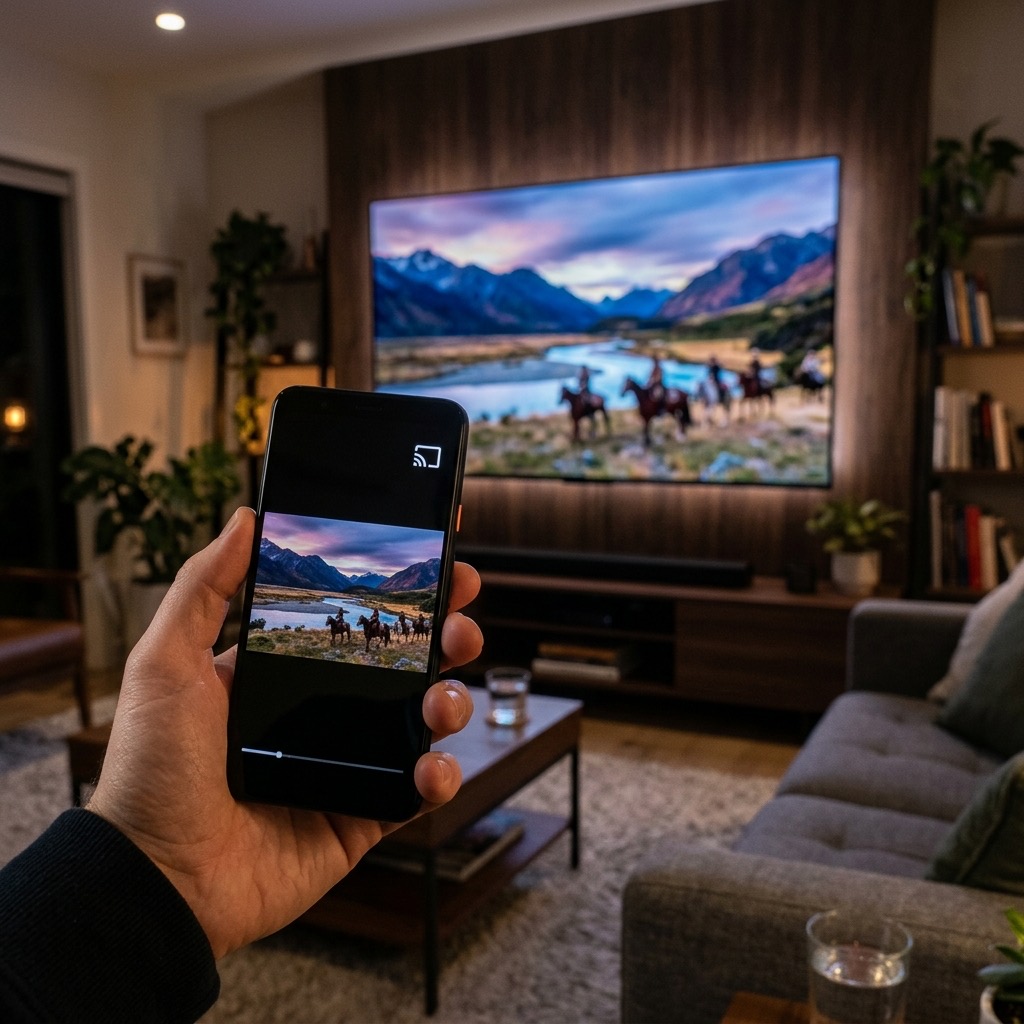
How to Cast IPTV from Phone to Smart TV (Chromecast & AirPlay)
. If you are looking for information on cast IPTV, you are in the right place. While navigating thousands of channels on a large screen with a traditional TV remote can sometimes feel clunky, using your smartphone offers a significantly better browsing experience. Your phone is fast, intuitive, and typing out the name of a specific movie on a touchscreen is infinitely faster than using an on-screen TV keyboard.
This is why casting has become incredibly popular. You can use your phone to browse the massive library, find exactly what you want, and instantly beam it to the big screen. Here is the ultimate guide on how to seamlessly cast your streams to your television.
Casting with Android and Chromecast (Cast IPTV)
If you own an Android smartphone and a TV with built-in Chromecast (or an external Google Chromecast dongle), casting is natively integrated and incredibly simple.
Using Native Cast Buttons in Apps
Several popular Android media players, such as GSE Smart IPTV and BubbleUPnP, have native Chromecast support built directly into their interfaces.
- Ensure your Android phone and your Chromecast-enabled TV are connected to the exact same Wi-Fi network.
- Open your player app on your phone and start playing a live channel or VOD movie.
- Tap the standard “Cast” icon (it looks like a small TV with Wi-Fi waves in the corner) located at the top of the screen.
- Select your Living Room TV from the list of available devices. The video will stop playing on your phone and instantly appear on your TV in full resolution.
Using Google Home for Screen Mirroring
If your preferred app (like Smarters Pro on mobile) does not have a native cast button, you can mirror your entire screen.
- Download and open the official Google Home app on your Android phone.
- Select your TV from the list of devices.
- Tap Cast my screen. Everything on your phone will now appear on the TV. Simply open your player, start the stream, and turn your phone sideways to full screen the video.
Casting with iPhone and AirPlay
If you live in the Apple ecosystem, AirPlay provides a flawless, high-definition casting experience. You will need an Apple TV or a modern Smart TV (Samsung, LG, Sony) that officially supports AirPlay 2.
Using GSE Smart IPTV for iOS
GSE Smart IPTV is one of the few iOS apps that handles AirPlay remarkably well for live M3U streams.
- Connect your iPhone and your AirPlay-compatible TV to the same Wi-Fi network.
- Open GSE Smart IPTV on your iPhone and start playing a channel.
- Tap the AirPlay icon on the playback screen and select your TV. The video will seamlessly transfer to the large screen.
Using iOS Screen Mirroring
Just like Android, you can always fall back on mirroring your entire iPhone display if the app lacks native AirPlay support.
- Start the video on your iPhone using any player (like Smarters Player Lite).
- Swipe down from the top right corner of your screen to open the Control Centre.
- Tap the Screen Mirroring icon (two overlapping rectangles).
- Select your TV from the list. The stream will now be displayed on your television.
Troubleshooting Casting Issues
- Video is Stuttering: Casting requires a very strong local Wi-Fi connection. If your router is old or far away, the stream from your phone to the router, and then from the router to the TV, might drop packets. Moving the router closer or upgrading to a 5GHz network usually fixes this.
- Black Screen / No Audio: Sometimes the TV struggles to decode the specific audio/video codec being cast from the phone. Try switching the stream’s decoder in your phone app’s settings from Hardware (HW) to Software (SW).
Understanding how to cast IPTV is essential for the best experience.