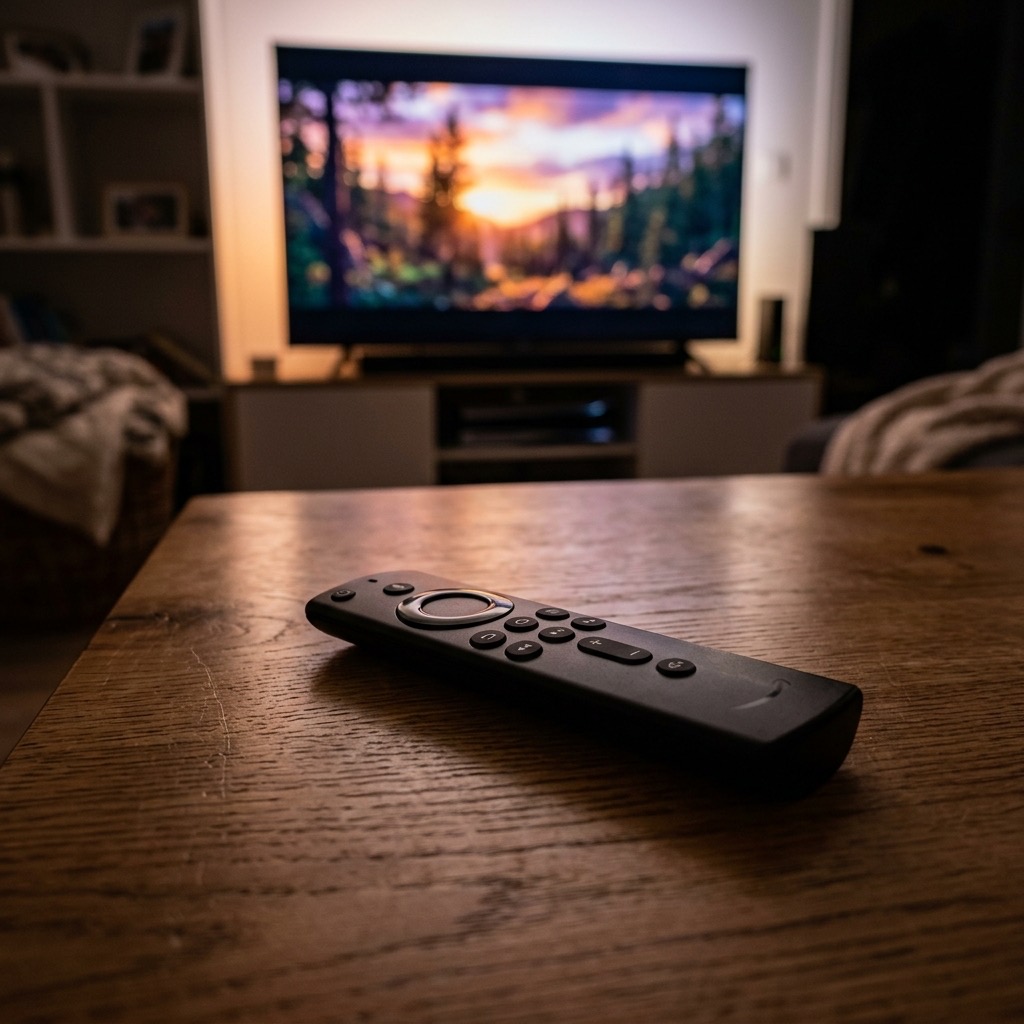
How to Install IPTV Smarters Pro on Amazon Firestick
. If you are looking for information on IPTV Smarters on Firestick, you are in the right place. When it comes to organizing and viewing a massive subscription containing 50,000 live channels and 100,000 movies, the media player you choose is critical. IPTV Smarters Pro is one of the most famous, user-friendly, and reliable applications in the world.
However, if you search the official Amazon App Store on your Firestick, you won’t find it. Because of pressure from copyright holders, Amazon frequently removes third-party media players from their official store. Don’t worry—because the Firestick runs on an Android operating system, you can easily bypass the store and “sideload” the app directly in less than five minutes. This guide will show you exactly how.
Step 1: Prepare Your Firestick for Sideloading (IPTV Smarters on Firestick)
By default, Amazon blocks the installation of apps from “Unknown Sources” to protect users from malware. Since we are installing a safe, highly reputable application directly from the developer, we need to temporarily disable this block.
- Turn on your TV and navigate to the Settings icon (the gear symbol) on the far right of the Firestick home screen.
- Scroll down and select My Fire TV.
- Select Developer Options. (Note: If you do not see Developer Options, click on ‘About’, then click on ‘Fire TV Stick’ seven times rapidly to unlock it.)
- Turn ON Apps from Unknown Sources. You may receive a warning prompt; click Turn On to confirm.
Step 2: Install the Downloader App
Now that your Firestick is unlocked, you need a way to browse the internet and download the APK (Android Package) file for Smarters Pro. The best tool for this is the official ‘Downloader’ app.
- Go back to the Firestick Home screen.
- Navigate to the Find (magnifying glass) icon and select Search.
- Type in Downloader.
- Select the orange app named Downloader and click Download or Get to install it.
Step 3: Download and Install Smarters Pro
You now have the necessary tools to fetch the app directly from the internet.
- Open the Downloader app. If it asks for permission to access photos, media, and files, click Allow.
- On the main screen of Downloader, you will see a URL search bar. Click on it.
- Using the on-screen keyboard, carefully type the following URL: smarters.link (This is a commonly used direct link to the latest APK file). Alternatively, you can search for the official Smarters Pro website.
- Click Go. The APK file will begin downloading automatically.
- Once the download is complete, the Firestick will prompt you to install it. Click Install.
- When it finishes, click Done. You can then click ‘Delete’ to remove the installation file and free up storage space on your Firestick.
Step 4: Logging In with Xtream Codes
You have successfully installed the app! Now it’s time to connect it to your subscription.
- Return to the Firestick Home screen, navigate to your Apps, and open IPTV Smarters Pro.
- Accept the Terms of Use.
- You will be presented with several login methods. The absolute easiest and most stable method is to select Login with Xtream Codes API.
- You will see four fields:
- Any Name: Type whatever you want (e.g., “British TV”).
- Username: Enter the username provided by your service.
- Password: Enter the password provided by your service.
- URL: Enter the server URL (e.g., http://premium-server.com:8080) exactly as provided.
- Click Add User. The app will connect to the server and download your Live Channels, Movies, and Series into a beautiful, Netflix-style dashboard.
Understanding IPTV Smarters on Firestick is essential for the best experience.