How to Setup IPTV on a MAG Box (Complete Guide)
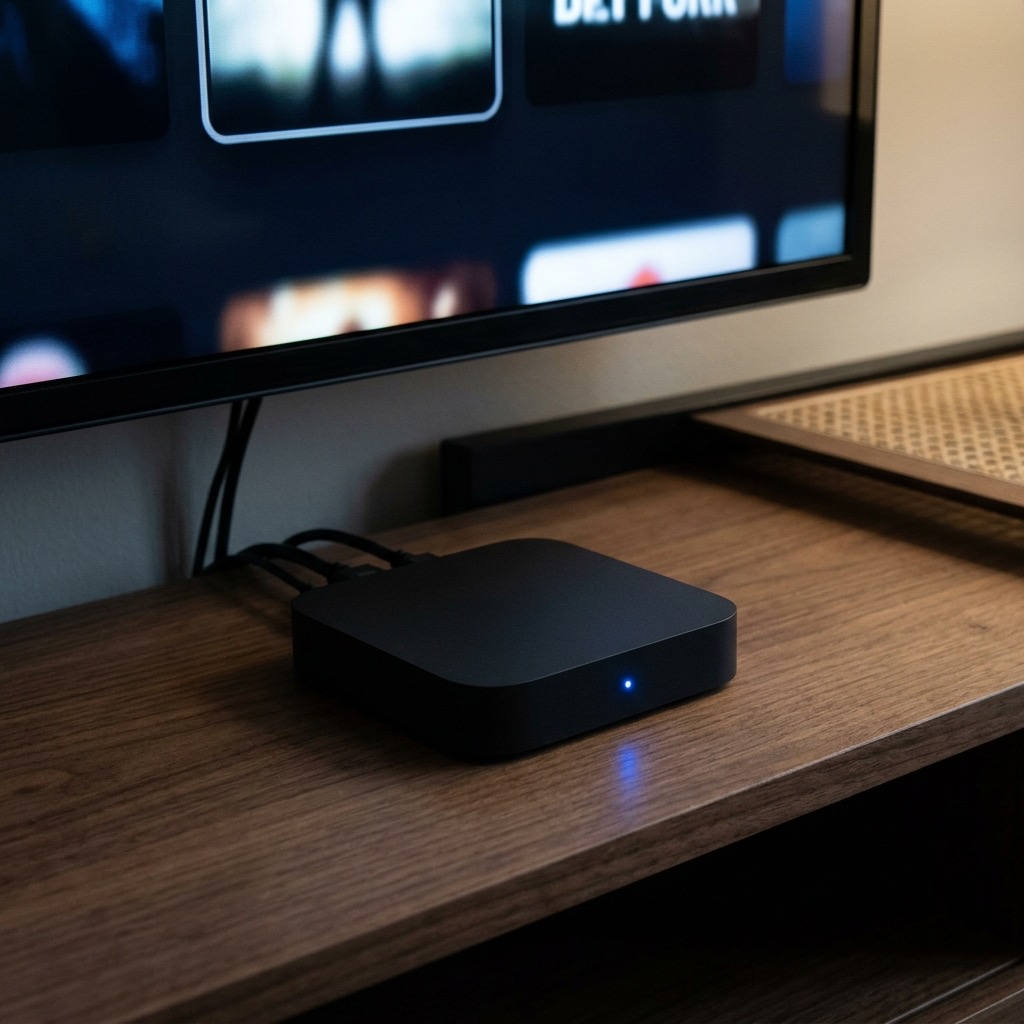
. If you are looking for information on MAG box IPTV, you are in the right place. Before Amazon Firesticks and smart TVs dominated the market, there was the MAG Box. Manufactured by Infomir, the MAG series (MAG 250, 254, 322, 420) was the original gold standard for internet television. These devices were purpose-built for one thing: streaming television with a dedicated, intuitive, cable-box-like interface.
While newer Android devices are more versatile, many purists still swear by the unparalleled stability and familiar remote control layout of a MAG box. This guide will show you exactly how to connect your MAG box to a premium provider using a Portal URL.
Understanding the MAC Address System (MAG Box IPTV)
Unlike setting up TiviMate on a Firestick, where you simply type an M3U URL into an app, MAG boxes use a completely different authentication system called the Stalker Portal.
A MAG box does not use a username and password. Instead, it relies on its physical hardware ID, known as the MAC Address. This address is unique to your specific device and usually looks like this: 00:1A:79:XX:XX:XX.
To set up the service, you must first provide this MAC address to your subscription provider. The provider registers your MAC address on their secure server. Then, you simply point your MAG box to the provider’s Portal URL. Because your MAC is registered, the server grants you access instantly.
Step 1: Finding Your MAC Address
- Turn on your MAG box and wait for it to load to the main “Inner Portal” screen.
- Navigate to Settings (the gear icon).
- Select System Settings.
- Scroll down to Device Info.
- Write down the MAC address displayed on the screen. It will always start with
00:1A:79. Provide this address to your provider when purchasing a subscription.
Step 2: Adding the Portal URL
Once your provider confirms that your MAC address is activated on their server, they will send you a “Portal URL” (e.g., http://mag.premium-server.com/c/). Here is how to enter it:
- From the main menu (Inner Portal), go to Settings > System Settings.
- Select Servers.
- Select Portals.
- In the Portal 1 Name field, type “British TV” (or whatever you prefer). You can bring up the on-screen keyboard by pressing the keyboard button on your remote.
- In the Portal 1 URL field, carefully type the exact URL provided by your service. Double-check for any typos.
- Press OK to save the changes.
Step 3: Reboot and Connect
- Press the Exit button on your remote repeatedly until you return to the System Settings menu.
- Select Restart Portal (or reboot the device entirely by unplugging the power cable).
- When the MAG box reboots, it will immediately attempt to connect to the Portal URL you entered. A yellow loading bar will appear.
- Once connected, you will be presented with a classic, highly organized Live TV, VOD, and Radio interface.
Troubleshooting Common MAG Errors
- “Your STB is Blocked”: This means your provider has not activated your MAC address on their server yet, or your subscription has expired.
- “Page Loading Error”: This usually means there is a typo in the Portal URL, or your MAG box is not connected to the internet. Double-check your ethernet cable connection.
Understanding MAG box IPTV is essential for the best experience.