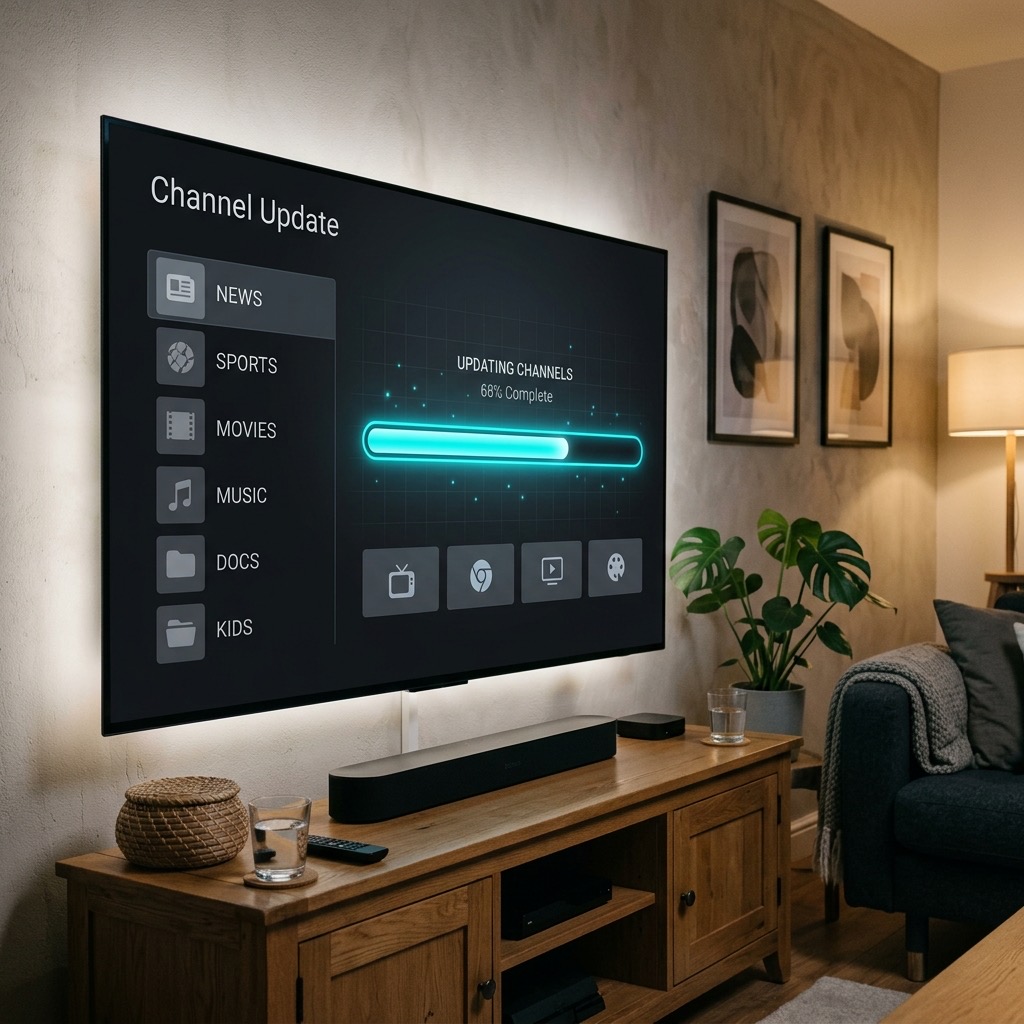
How to Update Your IPTV Playlist and EPG (TV Guide)
. If you are looking for information on update IPTV playlist, you are in the right place. Have you ever turned on your TV only to find that some channels are missing, the new movie you wanted to watch isn’t in the VOD library, or the TV guide simply says “No Information”? This doesn’t mean your subscription has broken; it simply means your local app hasn’t downloaded the latest data from the server.
Because premium providers are constantly adding new channels, updating broken streams, and adding the latest cinema releases, your playlist is a highly dynamic file. This guide explains how to manually force an update and how to set your app to do it automatically.
Why Do I Need to Update? (Update IPTV Playlist)
When you first enter your M3U URL or Xtream Codes login into an app like TiviMate or Smarters Pro, the app downloads a snapshot of the channel list at that exact moment. However, the provider’s server is constantly changing behind the scenes.
If a sports channel changes frequency, the provider will update the link on their server. If your app hasn’t updated its local playlist, it will try to access the old, dead link, resulting in a playback error. Updating your playlist ensures your app is perfectly synchronized with the live server.
The same applies to the EPG (Electronic Programme Guide). The TV guide data usually only covers 3 to 7 days in advance. If you don’t update it, the guide will eventually run out of data and appear blank.
How to Update in TiviMate (Firestick / Android)
TiviMate makes updating incredibly easy, and it offers robust automatic scheduling.
Manual Update:
- Open TiviMate and press the Left directional button on your remote to open the main menu.
- Navigate down to Settings (the gear icon).
- Select Playlists and choose your playlist (e.g., “British TV”).
- Scroll down and select Update Playlist. Wait for the notification saying “Playlist updated successfully”.
- To update the guide, go back to Settings, select EPG, and click Update EPG.
Automatic Update (Recommended):
- Go to Settings > Playlists > Your Playlist.
- Turn ON Update playlist on app start.
- Turn ON Update playlist periodically and set the interval to every 24 hours.
- Repeat this process in the EPG settings.
How to Update in IPTV Smarters Pro
Smarters Pro requires a slightly more manual approach if you are experiencing missing VODs or channel errors.
Refreshing the Dashboard:
- Open the Smarters Pro app and log in to your profile.
- On the main dashboard (where you see Live TV, Movies, and Series), look for the circular refresh icon in the top right corner.
- Click the Refresh icon. It will download the latest channel list and VOD library.
Refreshing the EPG:
- Click on Install EPG or the circular refresh icon next to the EPG section on the dashboard.
- Alternatively, navigate to Settings > General Settings > EPG Timeline and force a refresh.
Troubleshooting Update Errors
If you click “Update” and receive an error (e.g., “Failed to update playlist”), the issue is usually one of the following:
- Your Subscription Expired: Contact your provider to check your account status.
- VPN Block: If you recently turned on a VPN, the provider’s server might block that specific VPN IP address. Try disconnecting the VPN, updating the playlist, and then reconnecting the VPN.
- Typo in the URL: If you are setting up the app for the first time, double-check your M3U or EPG URL for any spelling mistakes.
Understanding how to update IPTV playlist is essential for the best experience.